How to Build a Free SEO Website With AI (3 Pages, 99 Lighthouse Score, $0)
A free SEO website, built with AI in six steps: three pages, a 99 Lighthouse score and live for $0. Here's every tool and the order to use them.
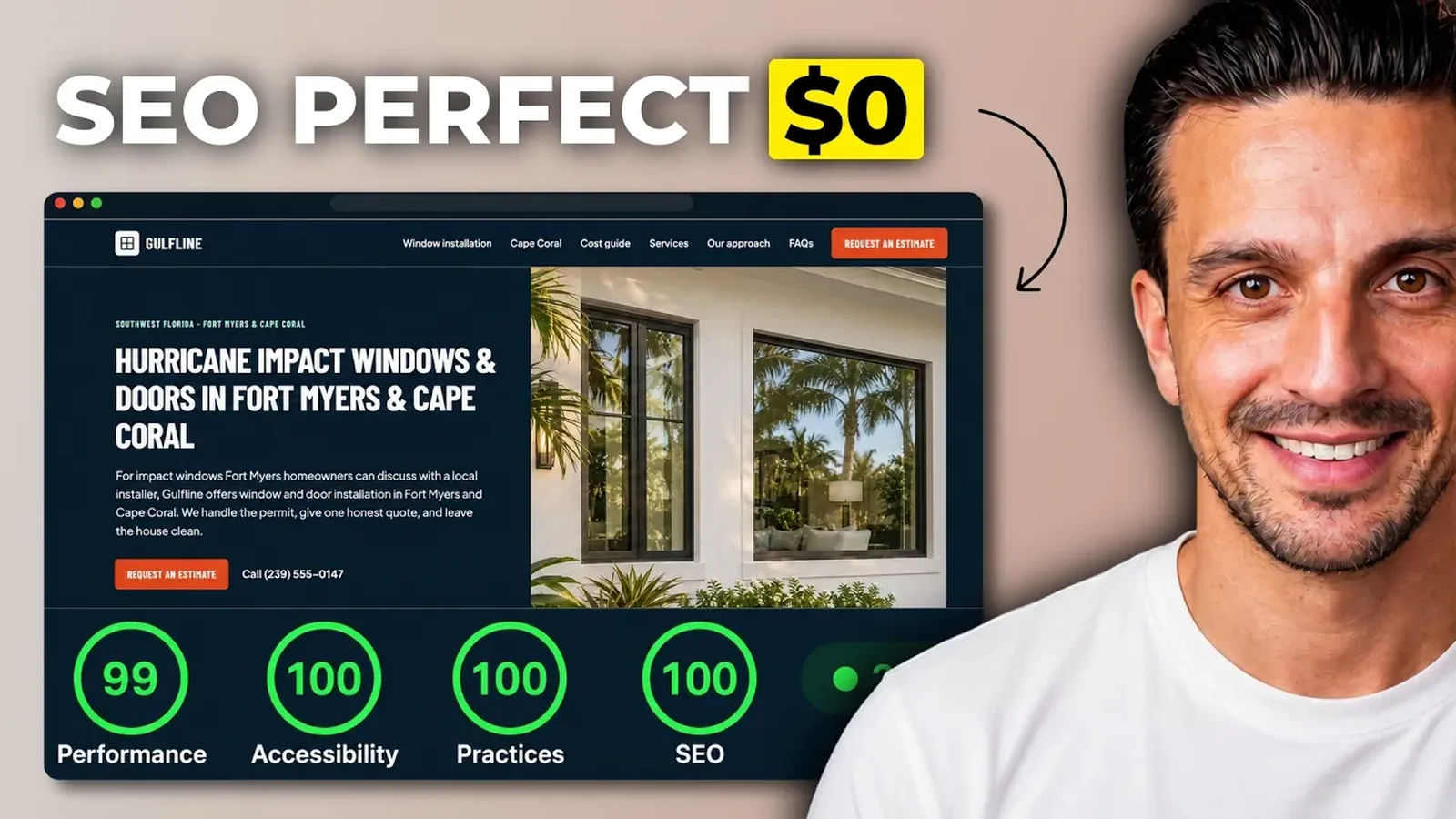
You can build a free SEO website with AI by using Claude for keyword research, Google Stitch for the design, Codex for the build and Cloudflare for hosting, all on free accounts. I did exactly that on camera: a three-page local site that scored 99 on Google's Lighthouse test and went live for $0.
Here's the thing. Plenty of people build websites with AI for free right now, and some of them look great. But almost every one I've seen is a single page. That's a landing page, and a landing page won't rank for the services you actually sell. This post is the written version of the video below, for business owners, freelancers and agency owners who want a free site that's built to rank.
Can you really build a free SEO website with AI?
Yes. Every tool in this build has a free plan that is enough for a small local site. The only thing you would ever pay for is a custom domain, and you don't need one to go live.
The problem was never building a website for free. It's that nobody builds free websites that are made to rank. So the plan here has six steps, and SEO comes first, not last:
- Pick the business, the service and the area.
- Do the keyword research with Claude.
- Design the pages in Google Stitch.
- Build the site with Codex in the ChatGPT desktop app.
- Check the Lighthouse score and the schema.
- Put it live on Cloudflare.
Here is the whole stack in one view.
| Step | Free tool | What you get |
|---|---|---|
| Keyword research | Claude (free plan) + DataForSEO | Site map CSV, FAQs, research notes |
| Design | Google Stitch | Design system plus a design for each page type |
| Build | Codex (ChatGPT desktop app) | Home, service and area pages as static files |
| Images | ChatGPT images | Photos in one consistent style |
| Quality check | Google Lighthouse | Speed, SEO, best practices and schema check |
| Hosting | Cloudflare | A live URL you can share |
The example business in the video is Gulfline, an impact window and door installer in Fort Myers and Cape Coral, Florida. You can see the finished site for yourself. Every prompt I used is in the free prompt doc, so you can copy, paste and fill in the brackets.
What do you need before you start?
You need a business, the service it sells and the place it sells it. The more niche the area, the better a small website will do.
A suburb beats a city. A three-page site has a real chance in one town for one service. It has very little chance for a whole metro area. If you don't have a business yet, make one up and follow along with mine.
Also create one folder on your computer and name it after the business. Everything goes in there: the research, the design and the build. It sounds boring, but a tidy folder is what stops a free AI model from getting confused later.
How do you do free keyword research with Claude?
Connect the free plan of Claude to a keyword data source, then run one research prompt. Claude returns a site map, a list of FAQs and research notes in a couple of minutes.
Claude can't guess search volumes, so it needs real data. I use DataForSEO, which gives you $1 of free credit when you sign up, with no card needed. That is more than enough for this job. It's pay as you go, so if the credit runs out you don't get charged.
To connect it:
- In Claude, go to Customize, then Connectors, then Add custom connector.
- Name it DataForSEO and paste the MCP server URL:
https://mcp.dataforseo.com/mcp - Keep your DataForSEO account open in the same browser so the sign-in pop-up goes through.
- Set the connector to always allow, so Claude doesn't stop to ask on every call.
That URL is the address Claude uses to talk to DataForSEO. You paste it once and you're done.
Then paste the research prompt with your business name, what it does, the main service and the areas. I ran it on Sonnet. You don't need the biggest model, this isn't rocket science. You get three files back: a site map CSV, the FAQs and the research notes. Download all three into your folder, and check the data makes sense before you move on.
If you want to go deeper on this step, our guide to keyword research with AI covers it properly.
How do you design the pages in Google Stitch?
Start with a design system, not a page. Once the colors, type and components are set, you design the home page, the service page and the area page one at a time.
Google Stitch is free and you can direct it, which is why I use it here. The first prompt in the doc only creates the design system. Give it the business name and the brand colors if the business has them. If it doesn't, let Stitch create them.
This is the moment to change things. Don't like the colors or the icons? Fix them now. A settled design means Codex has clear rules to follow, and you waste fewer free credits during the build.
Then run the page prompts one by one: home page, services, areas. Get one page right before you start the next. Stitch gives you a desktop and a mobile version of each, and it creates images you can save for later. I also had it design a blog page and an about page.
When you're happy, open the menu and download the whole project. You get a zip file. Unzip it into your business folder, rename the folder to "design" and delete the zip. Your folder now holds the research, the site map, the FAQs and the design.
How do you build the website with free Codex?
Open your business folder as a project in Codex and build one page per prompt. Free Codex handles this well in small steps and badly when you ask for everything at once.
Codex lives inside the ChatGPT desktop app. Create a new project, add your folder and tell Codex you trust it. Because the research and the design are already in that folder, Codex isn't making design decisions. It's gluing everything together.
The first prompt sets up the project and builds the home page. I left the reasoning effort on medium. When that's done, start a new chat for the next prompt, and keep going prompt by prompt. If you run out of free usage, pick it up again the next day.
At the end I asked Codex to launch the site locally so I could look at it. The whole build used about 20% of my free monthly usage. That's fine for one site, but it's a monthly limit, so be careful with it.
What came out is a real website, not a landing page:
- A home page with services, steps, reviews, FAQs and a quote form.
- A service page for impact window installation in Fort Myers.
- An area page for impact windows and doors in Cape Coral.
- A cost guide.
The service and area pages are what make the difference. One page can't rank for every service in every town, which is the website structure mistake I see most often. Give each service and each area its own page. Our guide to location pages shows how to do the area side properly.
And build the cost guide. The question I see asked most about any service in the AI search engines is how much it costs in a given location. Put what the service generally costs in your area on a page, plus what it costs with you, so you're in that conversation.
How do you get images for free?
Ask Codex which images the site needs, and tell it they must share one style, as if one photographer took them all. Consistency is what makes AI images look professional.
When people generate website images with AI and don't keep the prompting consistent, the site looks out of whack. One shared style line in every prompt fixes it.
On the free plan, Codex couldn't reach the image model for me. The workaround is simple: ask Codex to write the image prompts, then paste them into normal ChatGPT under images. Download the results into your project folder and tell Codex to add them to the site.
What did the Lighthouse test and schema check show?
The site scored 99 on Lighthouse, with strong SEO and best practices and a little accessibility work left to do. It also shipped with the right schema and image alt text.
Lighthouse is Google's own page quality test. A 99 means the page loads fast and follows the basics. It is one part of SEO, not all of it, so don't treat the score as the finish line. A technical SEO audit covers the rest.
The parts that matter more for ranking were there too. The headings target the keywords from the research, such as window installation in Fort Myers. The pages carry home construction business schema, service schema and FAQ schema. The images have alt text that describes what's in them. And the quote button is the first thing you see on mobile.
How do you put the website live for free on Cloudflare?
In Cloudflare, go to Workers and Pages, create an application and upload the site folder that Codex built. A few minutes later you have a live URL.
Codex puts the finished site in its own folder, called "site". That folder is what you upload. You can connect Cloudflare Pages to GitHub if you want, but for a free first version, uploading the static files is enough. You could use another host. I wanted to keep the whole thing free.
You now have a link you can share with a client. Two things to know before you expect rankings:
- Check the free address isn't telling Google to stay away. A free staging-style address can be set to no crawl by default. You can switch that off.
- A custom domain is the one real cost. Whichever way you look at it, a domain costs some money. It's also the point where the site becomes a proper business asset.
What should you do next?
Three pages is a start, not a finished local SEO strategy. Add a page for each service you sell and each area you serve, using the same prompts. Then get a domain, get the site indexed and keep building on the fundamentals. They still decide who ranks.
If you'd like help with that, the AI Ranking community is where we teach this step by step and review members' websites. And if you just want the prompts, grab the free prompt doc and build your own this week.