How to Connect DataForSEO to Claude
A quick, screenshot-led guide to connecting Claude to DataForSEO through the official remote MCP server, plus practical SEO tasks to run once it is connected.

Open Claude, then go to Customize → Connectors → Add → Add custom connector. Name it something memorable, such as DataForSEO MCP, paste https://mcp.dataforseo.com/mcp as the Remote server URL, and click Add. Select Connect, approve the DataForSEO authorization request, then return to Claude.
That is the whole connection. You do not need to create a local server, paste API credentials into a config file, or touch Terminal for this remote OAuth route. Make sure you are signed in to both DataForSEO and Claude in the same browser before you begin, because it makes the authorization handoff much smoother.
How to connect DataForSEO to Claude, step by step
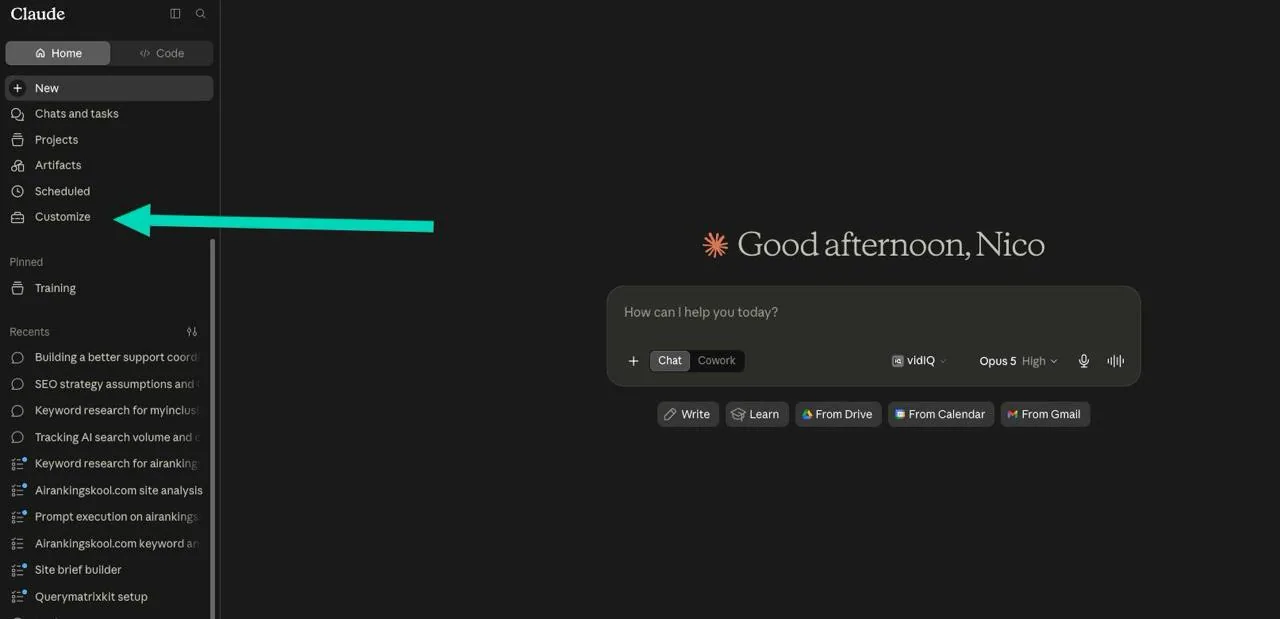
1. Open Claude and choose Customize
In Claude, you can start from the Home or Code tab. In the left sidebar, select Customize.
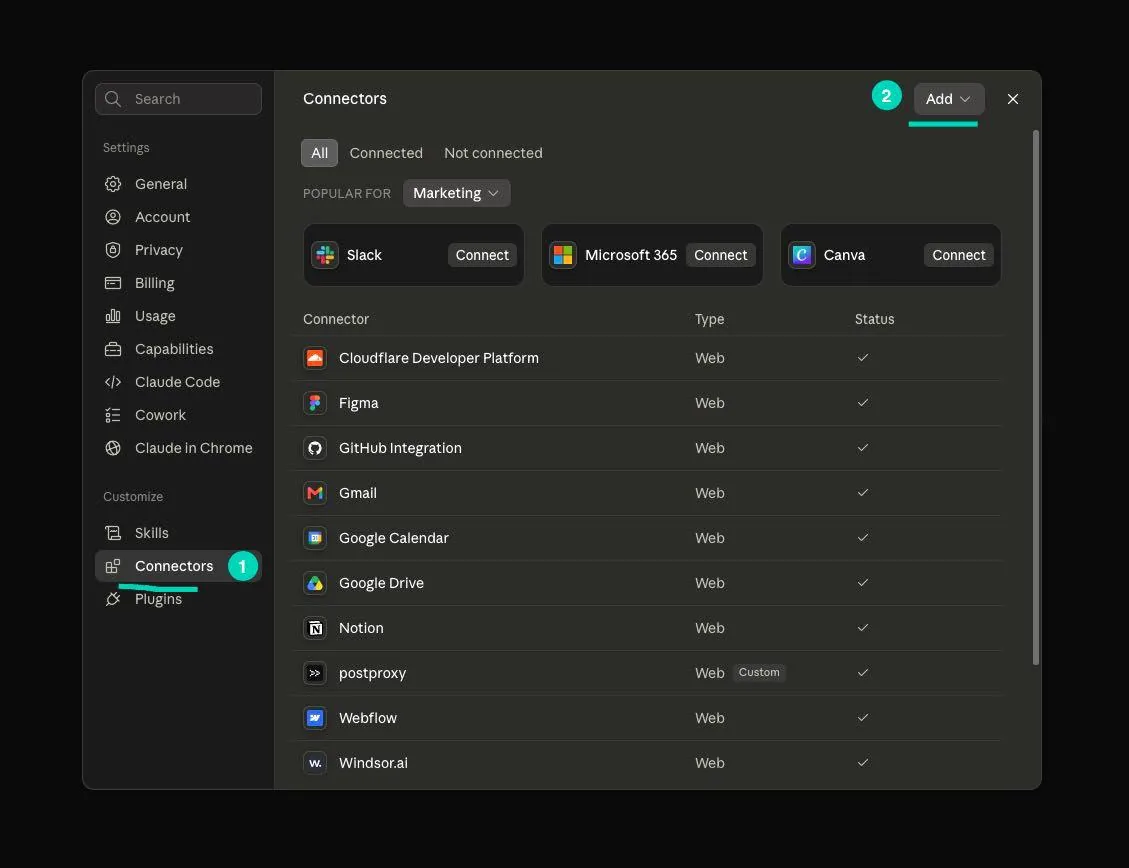
2. Open Connectors
Choose Connectors in the Customize menu. This is where Claude manages its built-in and custom connections.
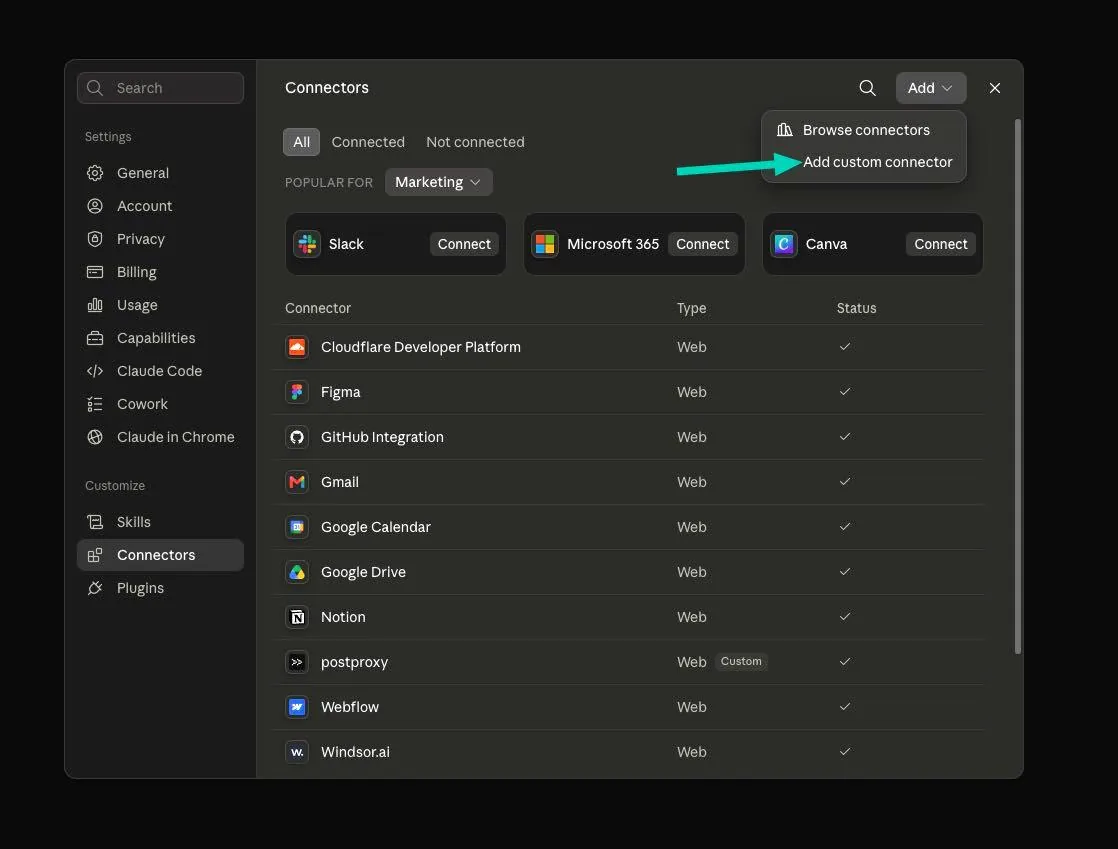
3. Add a custom connector
Select Add in the top-right, then choose Add custom connector.
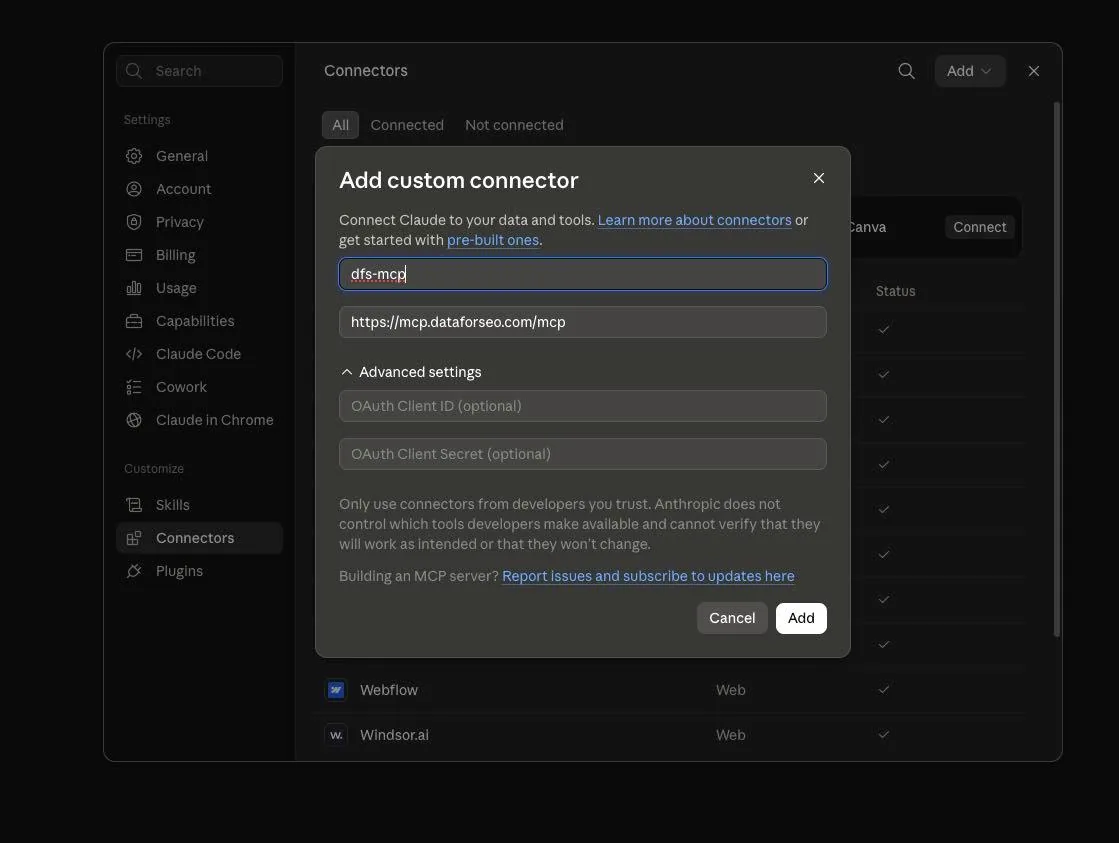
4. Name the connector and paste the DataForSEO MCP URL
Use a name you will recognise later, such as DataForSEO MCP. In the Remote server URL field, paste this exact URL:
https://mcp.dataforseo.com/mcpLeave the optional OAuth Client ID and Client Secret fields blank for this OAuth connection, then click Add.
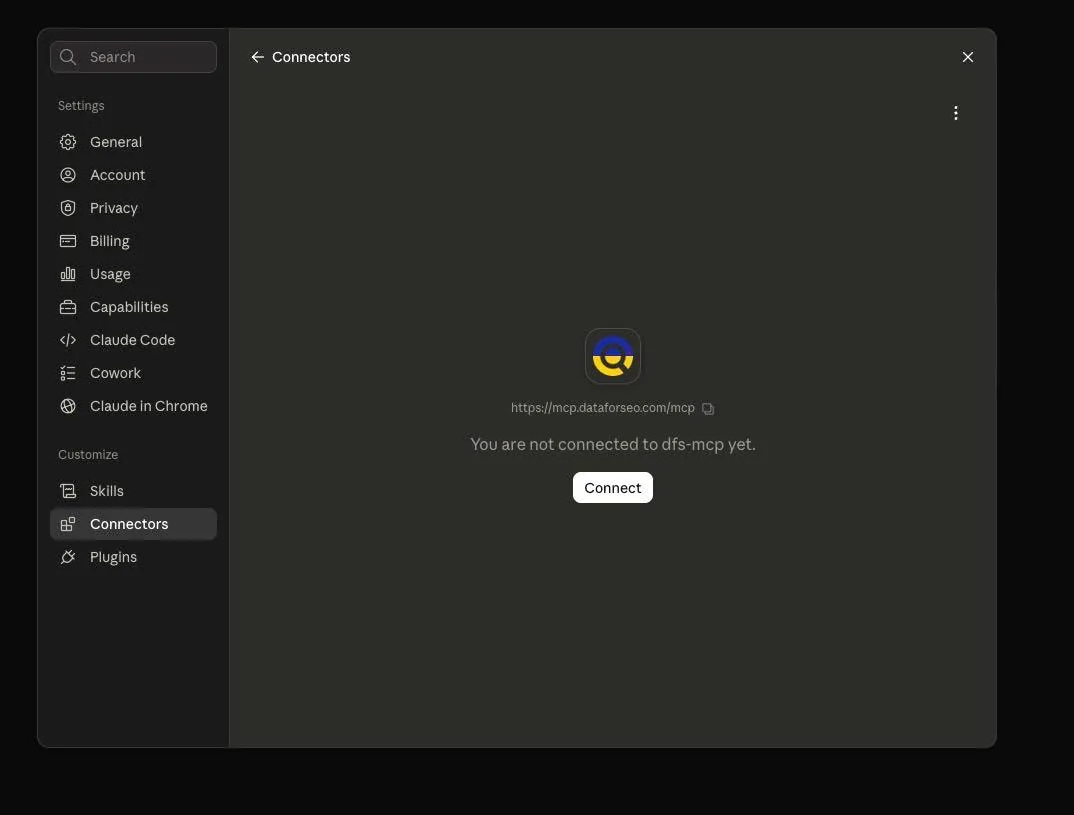
5. Click Connect
Claude will add the connector and show a Connect button. Click it to start the DataForSEO authorization flow.
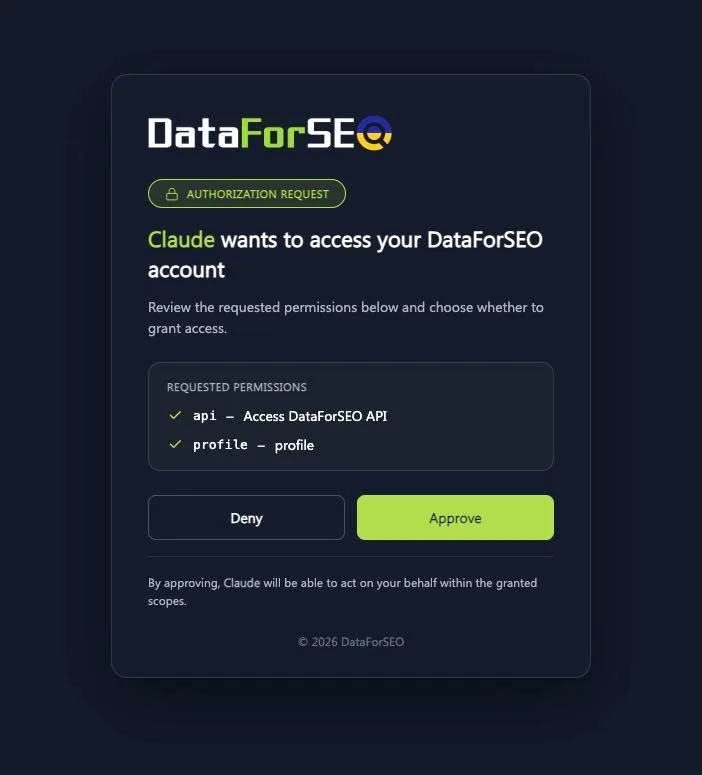
6. Approve the connection, then choose permissions deliberately
DataForSEO will ask you to approve access for Claude. Check that it is the official DataForSEO authorization page, then click Approve.
After it is connected, Claude may ask for permission each time it calls the MCP. That is slightly slower, but it is useful while you learn which tools it uses and what calls may cost. If you know and trust the tools you are using, changing the connector to always allow can remove repetitive approvals. Do not treat always allow as the default for every connector you add.
What can you use Claude and DataForSEO for?
Once Claude can query real SEO data, it stops guessing from general training data and can work from current keyword, SERP, competitor, backlink, and AI-search data. The useful shift is not “ask Claude for SEO ideas.” It is “give Claude a clearly bounded job, ask it to show its evidence, then decide what to implement.” If you need the broader setup decision, read my guide to connecting Claude to SEO data. For the work after connection, start with AI keyword research or a practical SEO agent workflow.
| Job | What Claude can ask DataForSEO for | Useful outcome |
|---|---|---|
| Keyword research | Keyword ideas, volume, intent clues, related terms, and current SERP context | A prioritised topic cluster instead of a random spreadsheet export |
| SERP analysis | Current ranking pages, titles, page types, features, and common angles | A clearer brief for the page Google is actually rewarding |
| Competitor research | Competitor rankings, topical gaps, visible pages, and backlink patterns | A focused list of gaps worth pursuing, not a vague competitor dump |
| Backlink analysis | Referring domains, link targets, anchors, and link-gap data | Better digital PR or linkable-asset ideas with evidence behind them |
| AI search research | DataForSEO AI Optimization and relevant SERP data where your plan supports it | Prompts and pages aimed at real AI-search visibility questions |
Use it like an SEO operator, not a magic answer machine
The best workflow is to give Claude a specific objective, a market, and a definition of a useful output. Ask it to state the data it used, make its assumptions visible, and separate observations from recommendations. That is how business owners, freelancers, and agency owners get more leverage without turning every decision into a black box.
For example, ask Claude to investigate a single service page before asking it to rebuild your entire content strategy. If it recommends a new page or major content change, review the live SERP yourself and make sure the conclusion fits your business, offer, and customers.
Five copy-and-paste DataForSEO prompts to try first
Replace the square-bracket fields, set Claude’s effort to high or max, and paste one prompt at a time. These are condensed versions of the report pack so you can get to a useful first answer quickly. Ask Claude to show the data it used and say “not available” when the connector cannot retrieve a metric.
1. Site Explorer
Use the DataForSEO connector for all data. Analyse [DOMAIN] in [COUNTRY], [LANGUAGE]. Show total ranking keywords, position buckets (1-3, 4-10, 11-20, 21-100), and the top 20 pages by estimated organic traffic. Then choose the three pages with the biggest realistic 90-day upside. For each: target keyword, current position, search volume, why it is stuck, and the first specific change to make. Rank by expected traffic gain. Do not estimate data you cannot retrieve. Show sources, assumptions, and uncertainty.2. Keyword Research Plan
Use the DataForSEO connector. Seed keyword: [SEED]. Business: [WHAT YOU SELL]. Market: [COUNTRY], [LANGUAGE]. Find the relevant keyword set with monthly volume and difficulty. Group keywords by intent, then cluster terms that belong on the same page. Give every cluster a working page title and URL slug. Check the live SERP before calling an opportunity weak. Remove keywords this business cannot credibly serve. Finish with the first three pages to build and why.3. Competitor Content Gap
Use the DataForSEO connector. My domain: [DOMAIN]. Competitors: [COMPETITOR 1], [COMPETITOR 2], [COMPETITOR 3]. Market: [COUNTRY], [LANGUAGE]. Find commercially relevant keywords where at least two competitors rank in the top 20 and my domain does not rank. Remove competitor-branded and irrelevant terms. For the best opportunities, show volume, strongest competitor position, ranking URL, page type, and what our page needs to do better. Group the results into prioritised content clusters and give me the top five actions to hand to a writer.4. Technical SEO Audit
Use the DataForSEO connector to crawl [DOMAIN]. Return only technical issues that could realistically hurt rankings or conversions. Ignore cosmetic warnings. For every issue: explain it simply, list affected URLs, describe the likely impact, give the exact fix, and estimate fix effort. Sort into fix this week, fix this month, and fix eventually. End with the single highest-impact fix. If a potential issue is uncertain, say why instead of overstating it.5. AI Search Visibility
Use DataForSEO AI Optimization data. Brand: [BRAND]. Domain: [DOMAIN]. Competitors: [COMPETITOR 1], [COMPETITOR 2]. Create a buyer-focused query set for this market, then check where the brand is cited and where it is missing. Show which competitors are cited instead and which source pages the AI engines use. Compare those pages with ours, then give the three highest-priority changes most likely to improve citations. State exactly how many queries and engines were checked. If data is unavailable, say so.Keep the honesty rule: a shorter report with real API data is more useful than an impressive-looking report full of guessed numbers.
Watch the quick video tutorial
Prefer to see the exact clicks first? Watch the 90-second walkthrough below.
FAQ
Do I need DataForSEO API credentials for this setup?
For the remote OAuth flow shown here, you authenticate by approving access in your DataForSEO account. You do not need to paste your API login or password into Claude. That is different from local MCP-server setups, which can use API credentials in a local configuration file.
What is the official DataForSEO MCP URL for Claude?
The remote server URL is https://mcp.dataforseo.com/mcp. Copy it exactly into Claude’s custom connector URL field.
Should I set DataForSEO permissions to always allow?
Only after you understand the available tools and their cost implications. Keeping approval on while you test provides an extra check. Always allow is useful when you trust the connector and are running a repeatable workflow.
Can this replace Ahrefs or Semrush?
It can replace parts of their workflow for teams comfortable directing an AI agent and reviewing the output. It is not an automatic replacement for every feature or every team. Start with one job, such as a keyword cluster or backlink gap, and compare the result against your current process.
Ready to turn the data into action?
Connecting the tool is the easy part. The bigger opportunity is building a repeatable workflow that turns useful data into better pages, clearer briefs, and SEO actions you can actually finish. Inside AI Ranking, I teach practical AI SEO workflows for business owners, freelancers, and agency owners, including how to use AI without handing it the keys to your website.